
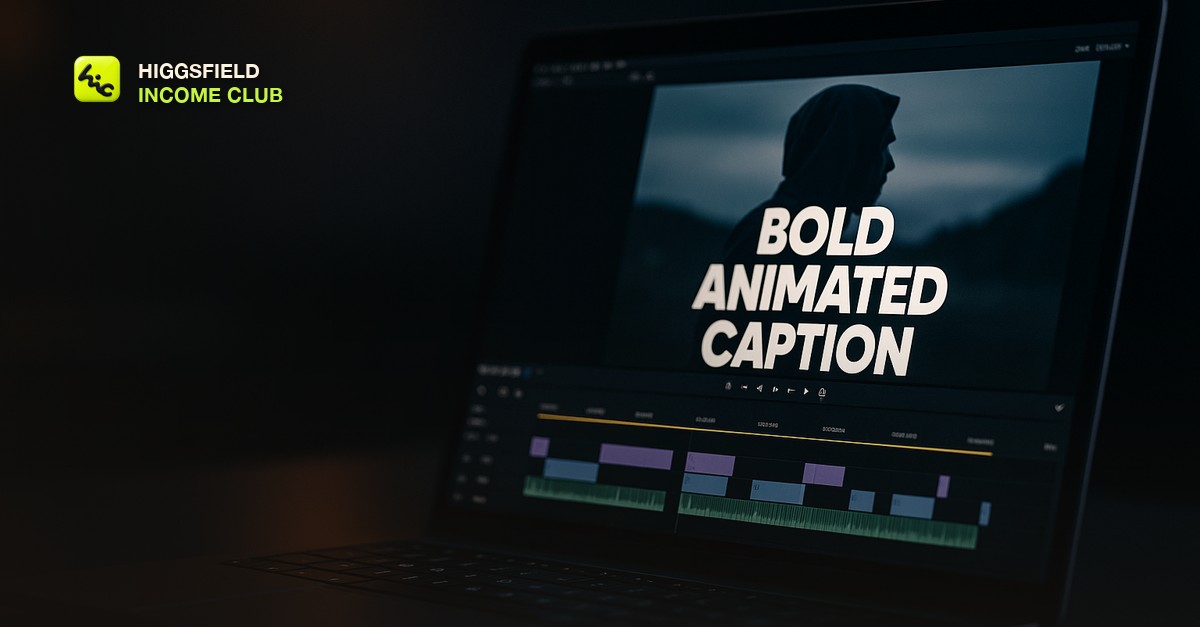
Why Silent-Scroll Viewing Makes Captions Non-Optional
Platform data across Shorts, Reels, and TikTok consistently shows a large share of viewers watching with sound off, especially in the first seconds before they decide to tap for audio or keep scrolling. If your video's hook depends on a voiceover line or on-screen dialogue and there is no caption on screen, that hook does not land for a silent viewer. It just plays as pretty, silent footage.
This matters more for AI-generated video than for a talking-head video, because a Higgsfield clip's hook is often carried by a voiceover or a text card, not by a recognizable face mouthing words a viewer can lip-read. Without a caption, the hook simply does not exist for anyone scrolling silently.
What You're Actually Captioning in AI Video
Captioning an AI-generated clip is a different job than captioning a normal talking-head video. There are three common sources to caption, and most finished pieces use a mix of them.
- Voiceover narration you recorded or generated separately and layered over the Higgsfield clip in your edit.
- On-screen text beats you write as hooks or context lines, independent of any audio.
- Ambient dialogue, in the rare case your generated scene includes speech - treat this the same as a real interview transcript.
If your video has no voiceover and no dialogue, generic auto-captions have nothing to transcribe. In that case, use short on-screen text cards at the key beats instead of a caption track, timed to the cuts rather than to speech.
Burned-In Beats Platform Auto-Captions
Platform auto-captions (YouTube's, TikTok's, Instagram's) are convenient but inconsistent: styling is generic, timing sync can drift, and the viewer has to opt in on some platforms. Burned-in captions, rendered directly into the video file during editing, are visible by default everywhere you post the clip and let you control the exact style.
Caption Style That Matches Cinematic AI Video
A caption style built for a talking-head vlog, small white text with a thin black outline, tends to look cheap against a cinematic Higgsfield clip and undercuts the production value you spent generation credits building. Match the caption to the tone of the footage instead.
- Bold sans-serif, large enough to read on a phone at arm's length, positioned in the lower or center-lower third away from any burned-in UI or watermark.
- One to three words highlighted per beat rather than a full sentence sitting static on screen - this reads as intentional motion design, not a transcript dump.
- Consistent color and animation style across a series so your captions become a recognizable part of your channel's look, not a different template every video.
Keep contrast high against your specific footage. A cinematic AI clip often has a dark or busy background, so test your caption color against the actual frame it sits on, not just against a blank preview.
Tools That Handle This Without a Manual Timing Pass
You do not need to hand-time every caption. Tools like CapCut, Descript, and Premiere's auto-transcribe feature can generate a timed caption track from your voiceover audio, which you then restyle and lightly clean up rather than building from scratch. Run the auto-transcribe pass first, fix any misheard words, then apply your channel's caption style as a saved preset so every video gets a consistent look in one click.
Save that styled preset once and reuse it. The time cost of captioning drops to a few minutes per video once the style is templated, which is the only way this stays sustainable at a daily or near-daily posting pace. Join the Higgsfield Income Club at higgsfieldincomeclub.com for $9/month for the caption preset files and the exact style members use across their channels.
Short, practical drops on income paths, prompts that work, packaging for views, and getting paid. No spam, unsubscribe anytime.
Frequently asked questions
Do I need captions if my Higgsfield video has no dialogue or voiceover?
You do not need a transcript-style caption track, but short on-screen text cards at your key beats still help viewers who are scrolling with sound off understand the hook and follow the story.
Should I use platform auto-captions or burn captions in?
Burn them in during editing. Burned-in captions display by default on every platform without relying on a viewer opting in or a platform's caption engine rendering correctly, and you control the exact style.
What caption style works best for cinematic AI-generated video?
Bold, high-contrast, motion-styled captions that reveal a few words at a time tend to match the production value of AI video better than a static full-sentence caption in a thin default font.
What tools can auto-generate captions from a voiceover?
CapCut, Descript, and Premiere Pro's auto-transcribe feature can all generate a timed caption track from voiceover audio, which you then clean up and restyle rather than timing manually from scratch.
Do captions actually improve watch time on AI video content?
Captions help retention specifically in the sound-off window at the start of a view, when a viewer is deciding whether to keep watching. If your hook depends on audio and there is no caption, a large share of scrollers never receive that hook at all.
Last reviewed by David on August 10, 2026