
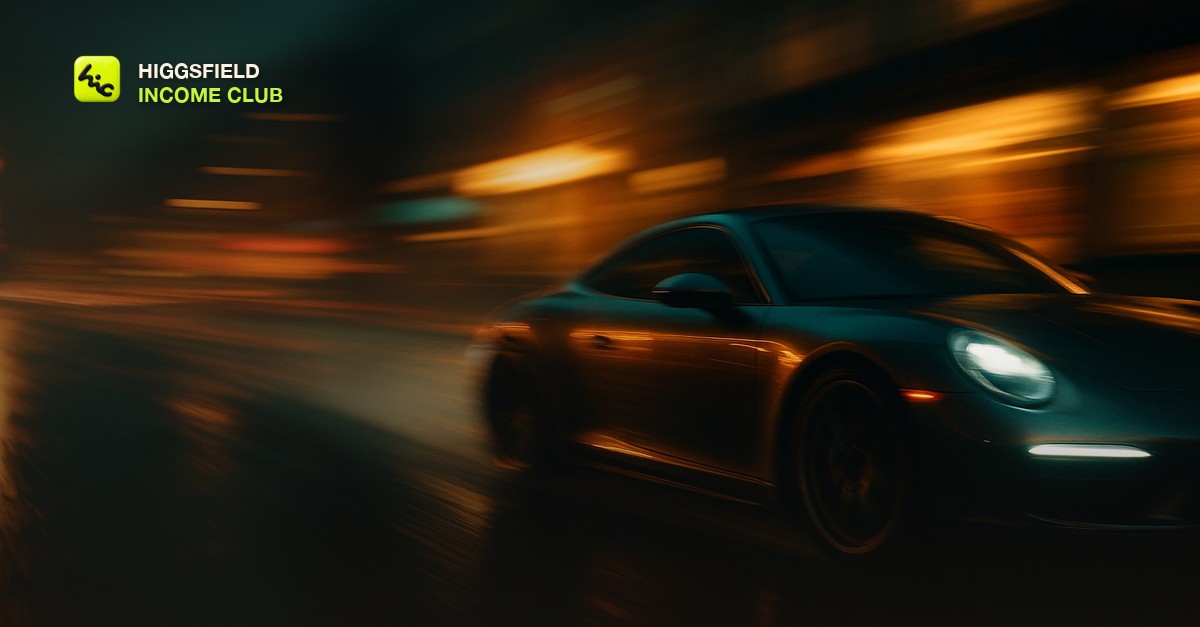
Why motion blur is what makes AI video look real
Motion blur is one of the strongest signals that separates AI video that reads as real from video that looks rendered, because every real camera produces it and the eye has spent a lifetime learning to expect it. When something moves fast in front of a real lens, it smears across the frame during the moment the shutter is open. Your brain treats that smear as proof the footage is real. When an AI clip renders fast movement with every frame perfectly crisp, the motion looks stiff and slightly wrong even when a viewer cannot say why, and that unease is what makes them label the clip as fake.
This is why motion blur belongs on the short list of tells to check on any clip before you post it. It is not a stylistic flourish, it is a realism cue that costs you credibility when it is missing. A car chase where the cars move crisply, a runner whose limbs are sharp at full sprint, a whip-pan where the background stays in focus: each one reads as generated the instant a viewer sees it, because real footage never looks that way. Get the blur right and the same shot reads as something that came out of a camera.
Prompt for the movement, not the blur
The reliable way to get realistic motion blur is to prompt for the camera behavior that produces it, not to ask for blur as an effect. Models respond far better to a described action than to an abstract instruction. Asking for a fast whip-pan following a moving subject, a car accelerating past the camera, or a handheld shot tracking a runner gives the model a physical scenario it can render, and the blur comes as a natural consequence of the speed and the camera move. Asking flatly for motion blur often gives you either nothing or a uniform smear that looks like a filter.
Name the speed and the camera relationship together. A phrase like a fast tracking shot alongside a speeding car tells the model both how fast the subject moves and how the camera follows it, which is exactly what determines how the blur falls in real footage. The same logic connects to broader [camera-motion control in AI video](/blog/how-to-control-camera-motion-in-ai-video): the more precisely you describe the move, the more the model behaves like a real camera rather than a still image with drift added.
- Describe the action and its speed: a car accelerating hard past the lens, a dancer spinning quickly, a fast whip-pan across a street.
- Name the camera's relationship to the subject: tracking alongside, panning to follow, static as the subject blurs past.
- Let the blur be a result of the movement you described rather than an effect you request in isolation.
The two extremes that give a clip away
Realistic motion blur lives in a narrow band, and both sides of it read as fake. Too little blur is the more common failure: the model renders fast movement with crisp frames, so a sprint or a fast pan looks stuttery and stiff, like a slideshow of sharp stills rather than continuous motion. This is the stiff, uncanny quality people notice in weaker AI clips even when they cannot name it. The movement is there, but the smear that would make it feel physical is not.
Too much blur is the opposite failure and it looks like a glitch. When a whole frame smears, or the blur does not match the speed of what is actually moving, the clip reads as broken rather than fast. The tell is a mismatch: a slow, gentle movement should carry almost no blur, while only the genuinely fast elements should smear. When everything in the frame is smeared equally regardless of how fast it moves, the eye registers it as an artifact, not motion.
Reading motion blur on a clip
| What you see | What it means | The fix |
|---|---|---|
| Fast movement, crisp frames | Too little blur; looks stiff and frame-by-frame | Reprompt with a described fast camera move, or add light blur in the edit |
| Whole frame smeared | Too much blur; reads as a glitch | Regenerate with a slower or simpler movement |
| Only fast elements smear, slow ones stay sharp | Correct; matches how a real lens behaves | Keep it |
How to fix a clip that came out flat
If a clip came out stiff with too little blur, you have two options and the right one depends on how far off it is. For a clip that is close, adding a light, controlled directional blur to the fast-moving elements in your editing tool can push it over the line into looking real, and it is faster than regenerating. This is a legitimate finishing step, the same way a real edit adds grade and sound; the key is restraint, because heavy added blur looks as wrong as too much generated blur.
For a clip that is badly stiff, regenerate rather than patch. Added blur cannot recover the sense of speed the model failed to render, and pushing it hard enough to try produces the smeared, glitchy look you were avoiding. Change the prompt to describe the movement and camera more concretely, or simplify the shot so the model has an easier motion to hold together, and get the blur at generation where it belongs. If you are building this into a repeatable process, an [AI video editing workflow that saves hours](/blog/ai-video-editing-workflow-for-creators) covers where a finishing pass like this fits.
The Higgsfield Income Club at higgsfieldincomeclub.com, $9/month, is where AI video creators trade the prompt phrasings that reliably trigger natural motion blur, the finishing settings that fix a flat clip without over-smearing it, and the wider realism checklist that keeps client work from reading as generated. It is the fastest way to stop guessing at the cues that make AI video look like it came from a camera.
Short, practical drops on income paths, prompts that work, packaging for views, and getting paid. No spam, unsubscribe anytime.
Frequently asked questions
How do I add motion blur to AI video?
Get it at generation by prompting for the movement that produces it rather than asking for blur directly. Describe a fast camera move and how it follows the subject, such as a tracking shot alongside a speeding car, and the model renders the smear a real lens would. If a clip is close but stiff, a light directional blur added to the fast elements in your editor can finish it.
Why do my AI videos look stiff when things move fast?
Because the model rendered the fast movement with crisp frames and no motion blur, so continuous motion looks like a slideshow of sharp stills. Real cameras smear fast movement, and the eye expects that smear. Reprompt with a concretely described fast camera move, or add a light, controlled blur to the moving elements in the edit.
Can I add motion blur in editing instead of at generation?
For a clip that is close, yes. A light, controlled directional blur on the fast-moving elements can push a slightly stiff clip into looking real, and it is faster than regenerating. For a badly stiff clip, regenerate instead, because added blur cannot recover a sense of speed the model never rendered and pushing it hard looks like a glitch.
Why does my AI video look smeared or glitchy?
That is too much motion blur, or blur that does not match the speed of what is moving. Realistic blur is selective: only the genuinely fast elements smear while slow ones stay sharp. When the whole frame smears equally, the eye reads it as an artifact rather than motion. Regenerate with a slower or simpler movement.
Does frame rate affect how much motion blur I need?
Yes. A 24 frames-per-second cinematic look carries more natural blur than the same action at a higher, crisper frame rate. Decide the final look you are delivering first, because that tells you how much blur the shot should actually have and stops you from over- or under-correcting.
Last reviewed by David on September 16, 2026